10 Exceptional WordPress Hacks

Email Newsletter
Weekly tips on front-end & UX.
Trusted by 200,000+ folks.
 Flexible CMS. Headless & API 1st


 Register!
Today, let’s do it again with 10 new and totally killer WordPress hacks to make your blog stand out from the crowd. As usual, we won’t just list the hacks alone. In each entry, you’ll find an explanation of the code as well as the kinds of problems that the hack solves.
1. Create TinyURLs On The Fly
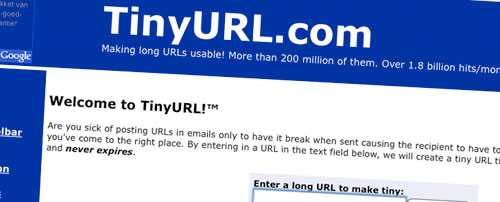
The problem. Because Twitter has become a social media revolution, many bloggers and Twitter users enjoy sharing blog posts they have found and liked on Twitter. However, manually creating a TinyURL before tweeting can get a little tedious. As you probably know, Twitter can bring a lot of traffic to your blog, so it is in your interest to consistently provide short URLs to your readers.
The solution. To use this recipe, follow the simple steps below:
- Open your functions.php file.
Paste the following code in the file:
function getTinyUrl($url) {
    $tinyurl = file_get_contents("https://tinyurl.com/api-create.php?url=".$url);
    return $tinyurl;
}
Open your single.php file and paste the following in the loop:
<?php
$turl = getTinyUrl(get_permalink($post->ID));
echo 'Tiny Url for this post: <a href="'.$turl.'">'.$turl.'</a>'
?>
That’s all you need. Each of your posts now has its own TinyURL, ready for tweeting!
Code explanation. The popular URL shortening service TinyURL provides a quick API that creates TinyURLs on the fly. When you pass a URL to https://tinyurl.com/api-create.php, the API immediately prints the related TinyURL on the screen.
Using the PHP function file_get_contents(), we can get it and assign it to the $tinyurl variable. The last part of the code retrieves the post’s permalink and passes it as a parameter to the getTinyUrl() function previously created.
Source:
2. List Upcoming Posts

The problem. If you often schedule posts to be published, how about displaying them in a list? This will make your readers look forward to what you’re going to publish in a few days and can help you reach new RSS subscribers. Implementing this functionality on your WordPress blog isn’t hard at all.
The solution. Nothing hard here. Just copy this code and paste it anywhere in your theme files.
<div id="zukunft">
  <div id="zukunft_header"><p>Future events</p></div>

  <?php query_posts('showposts=10&post_status=future'); ?>
  <?php if ( have_posts() ) : while ( have_posts() ) : the_post(); ?>
    <div >
      <p class><b><?php the_title(); ?></b><?php edit_post_link('e',' (',')'); ?><br />

      <span class="datetime"><?php the_time('j. F Y'); ?></span></p>
    </div>
  <?php endwhile; else: ?><p>No future events scheduled.</p><?php endif; ?>

</div>
Once you’ve saved the file, your upcoming posts will be displayed on your blog.
Code explanation. This code use the super-powerful query_posts() WordPress function, which allows you to take control of the WordPress loop.
The parameter used is post_status, which allows you to get posts according to their status (published, draft, pending or future). The showposts parameter is also used to define how many items you’d like to get. You can change the value of this parameter on line 4 to retrieve more or less than ten posts.
Source:
3. Create A “Send To Facebook” Button

The problem. In the first hack, we noted that Twitter can bring a lot traffic to your blog. Another website that can boost your traffic stats easily is Facebook. In this hack, let’s see how we can create a “Send to Facebook” button for your WordPress blog.
The solution.
- Open the single.php file in your theme.
Paste the following code in the loop:
<a href="https://www.facebook.com/sharer.php?u=<?php the_permalink();?>&t=<?php the_title(); ?>" target="blank">Share on Facebook</a>Alternatively, you could use the getTinyUrl() function to send a short URL to Facebook:
<?php $turl = getTinyUrl(get_permalink($post->ID)); ?>
<a href="https://www.facebook.com/sharer.php?u=<?php echo $turl;?>&t=<?php the_title(); ?>" target="blank">Share on Facebook</a>
That’s all. Your readers will now be able to share your blog post on Facebook with their friends!
Code explanation. This useful hack is very easy to understand: the only thing we do here is retrieve the post’s permalink and title and send them as parameters to https://www.facebook.com/sharer.php.
In the alternative method, we used the getTinyUrl() function (created in the previous hack) to send a short URL instead of the post’s permalink.
Source:
4. Create A Maintenance Page For Your WordPress Blog

The problem. One thing I really like about Drupal is the option to temporarily redirect visitors to a maintenance page. Sadly, WordPress doesn’t have this feature. When you upgrade your blog, switch themes or make design changes, you may not want your visitors to see your blog as it is being tweaked, especially if it has design or code problems or, even worse, security gaps.
The solution. To solve this problem, we use the power of the .htaccess file. Just follow the steps below to get started.
- Create your maintenance page. A simple WordPress page is generally sufficient.
- Find your .htaccess file (located at the root of your WordPress installation) and create a back-up.
- Open your .htaccess file for editing.
Paste the following code:
RewriteEngine on
RewriteCond %{REQUEST_URI} !/maintenance.html$
RewriteCond %{REMOTE_ADDR} !^123.123.123.123
RewriteRule $ /maintenance.html [R=302,L]
Replace 123.123.123.123 on line 3 with your IP address (Don’t know it?). Make sure to use the same syntax.
Now, all visitors except you will be redirected to your maintenance page.
Once you’re done tweaking, upgrading, theme switching or whatever, re-open your .htaccess file and remove (or comment out) the redirection code.
Code explanation. The .htaccess file, which controls the Apache Web server, is very useful for these kinds of tasks.
In this example, we state that any visitor who has an IP different from 123.123.123.123 (which doesn’t request maintenance.html) should be redirected to maintenance.html.
By replacing 123.123.123.123 with your own IP address, you make sure you’re still allowed to browse your blog normally, while others are redirected to maintenance.html.
Source:
5. Display Related Posts Without A Plug-In

The problem. One well-known way of keeping visitors on your blog longer and helping them discover news posts is to display, usually at the end of the article, a list of related content.
Many plug-ins will do this job, but why not super-charge your theme by integrating this functionality by default?
The solution.
- Open the single.php file in your theme.
Paste the following code in the loop:
<?php
//for use in the loop, list 5 post titles related to first tag on current post
$tags = wp_get_post_tags($post->ID);
if ($tags) {
  echo 'Related Posts';
  $first_tag = $tags[0]->term_id;
  $args=array(
    'tag__in' => array($first_tag),
    'post__not_in' => array($post->ID),
    'showposts'=>5,
    'caller_get_posts'=>1
   );
  $my_query = new WP_Query($args);
  if( $my_query->have_posts() ) {
    while ($my_query->have_posts()) : $my_query->the_post(); ?>
      <p><a href="<?php the_permalink() ?>" rel="bookmark" title="Permanent Link to <?php the_title_attribute(); ?>"><?php the_title(); ?></a></p>
      <?php
    endwhile;
  }
}
?>
Save the file, and then have a look at your blog: related posts are automatically displayed!
Code explanation. This hack uses tags to retrieve related posts. The first thing it does is get the post’s tags. If a post has tags, the first one is extracted and used in a query that retrieves posts with the same tag.
By default, this code displays up to five related posts. To change this number, simply edit line 9 of the code.
Source:
6. Automatically Retrieve The First Image From Posts On Your Home Page

The problem. Many WordPress users use custom fields to display a thumbnail on their blog home page. Of course, this is a nice solution, but how about automatically retrieving the first image from a post and using it as a thumbnail?
The solution. This hack is quite easy to implement:
- Open the functions.php file in your theme.
Paste this code in. Don’t forget to specify a default image on line 10 (in case a post of yours does not have an image).
function catch_that_image() {
  global $post, $posts;
  $first_img = ’;
  ob_start();
  ob_end_clean();
  $output = preg_match_all('/<img.+src=['"]([^'"]+)['"].*>/i', $post->post_content, $matches);
  $first_img = $matches [1] [0];

  if(empty($first_img)){ //Defines a default image
    $first_img = "/images/default.jpg";
  }
  return $first_img;
}
Save the functions.php file.
On your blog home page (index.php), call the function this way to get the URL of the first image from the post:
<?php echo catch_that_image() ?>
Code explanation. The function uses the global variable $post to parse the post’s content with a regular expression. If an image is found, its URL is returned by the function. If not, the default image URL is returned.
Source:
- How to: Get the first image from the post and display it
- Retreive first image from post
7. Resize Images On The Fly

The problem. When you use thumbnails on your blog’s home page or even images in posts, having to manually resize them is boring and wastes a lot of time. So, why not use the power of PHP to do it?
The solution. To achieve this hack, just follow these simple steps:
- Get this script and save it on your computer (I’ll assume you’ve named it timthumb.php).
- Use an FTP program to connect to your server and create a new directory called scripts. Upload the timthumb.php file to it.
Once done, you can display images like so:
<img loading="lazy" decoding="async" src="/scripts/timthumb.php?src=/images/whatever.jpg&h=150&w=150&zc=1" alt="Screenshot" />In other words, you just call the timthumb.php file and pass your image as a parameter. The same goes for your desired width and height.
Code explanation. The timthumb.php script use the PHP GD library, which allows you to manipulate images dynamically with PHP. GD is installed by default on all servers running PHP5. If you’re not running PHP5, you’ll have to check if GD is installed before using this script.
The timthumb.php file gets the parameters you’ve passed to it (image URL, width and height) and uses it to create a new image with your stated dimensions. Once that’s done, the image is returned to you.
Source:
- TimThumb PHP script released
- How to: Resize images on the fly
8. Get Your Most Popular Posts Without A Plug-In
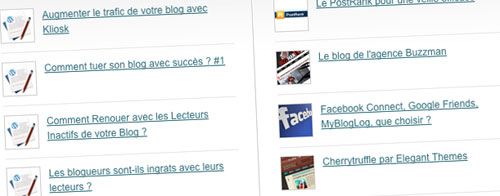
The problem. Displaying your most popular posts is a good way to make visitors stay longer on your blog, as is displaying related posts. Many great plug-ins can list your most popular posts, but again, why use a plug-in when you can simply hack your WordPress theme to do it automatically?
The solution. Just paste the following code anywhere in your theme files (for example, in sidebar.php). To change the number of displayed posts, simply change the “5” on line 3 to your desired number.
<h2>Popular Posts</h2>
<ul>
<?php $result = $wpdb->get_results("SELECT comment_count,ID,post_title FROM $wpdb->posts ORDER BY comment_count DESC LIMIT 0 , 5");
foreach ($result as $post) {
setup_postdata($post);
$postid = $post->ID;
$title = $post->post_title;
$commentcount = $post->comment_count;
if ($commentcount != 0) { ?>

<li><a href="<?php echo get_permalink($postid); ?>" title="<?php echo $title ?>">
<?php echo $title ?></a> {<?php echo $commentcount ?>}</li>
<?php } } ?>

</ul>
Code explanation. This code executes an SQL query to the WordPress database, using the $wpdb object, to get a list of the five posts with the most comments. The results are then wrapped in an unordered HTML list and displayed on screen.
Source:
9. Highlight Searched Text In Search Results

The problem. The WordPress search engine system is often criticized for not being powerful enough. One of its weakest points in my opinion is that searched text is not easily distinguishable from the rest of the text. Let’s solve that!
The solution.
- Open your search.php file and find the the_title() function.
Replace it with the following:
echo $title;Now, just before the modified line, add this code:
<?php
  $title  = get_the_title();
  $keys= explode(" ",$s);
  $title  = preg_replace('/('.implode('|', $keys) .')/iu',
    '<strong class="search-excerpt"></strong>',
    $title);
?>
Save the search.php file and open style.css. Add the following line to it:
strong.search-excerpt { background: yellow; }
That’s all. Better, isn’t it?
Code explanation. Once again, regular expressions are a lifesaver. The regexp parses the $s content ($s is the variable containing the searched text) and automatically adds a <strong class=“search-excerpt”> element around any occurrences of $s.
Then, you simply modify your style.css file to give searched text a special style and make it more visible to your readers.
Sources:
10. Disable Widgetized Areas Without Editing Theme Files

The problem. Widgets are very useful, but sometimes you don’t need them on a particular page or post. Sure, you can create a page template for a particular page or even remove the widgetized zone from the code, but a much better and more elegant solution exists.
The solution. To do this, simply add the following code to your functions.php file:
<?php
add_filter( 'sidebars_widgets', 'disable_all_widgets' );

function disable_all_widgets( $sidebars_widgets ) {
  if ( is_home() )
    $sidebars_widgets = array( false );
  return $sidebars_widgets;
}
?>
Code explanation. This code first adds a filter to the sidebars_widgets WordPress function. Now every time WordPress tries to execute this function, it will execute the disable_all_widgets function we just created.
The disable_all_widgets function uses WordPress conditional tags (in this example, is_home(), but you can use any conditional tag) to disable all widgets if a visitor is on a particular page or post.
Source:
    function catch_that_image() {
      global $post, $posts;
      $first_img = ’;
      ob_start();
      ob_end_clean();
      $output = preg_match_all('/<img.+src=['"]([^'"]+)['"].*>/i', $post->post_content, $matches);
      $first_img = $matches [1] [0];

      if(empty($first_img)){ //Defines a default image
        $first_img = "/images/default.jpg";
      }
      return $first_img;
    }
- Save the functions.php file.
On your blog home page (index.php), call the function this way to get the URL of the first image from the post:
<?php echo catch_that_image() ?>
Code explanation. The function uses the global variable $post to parse the post’s content with a regular expression. If an image is found, its URL is returned by the function. If not, the default image URL is returned.
Source:
- How to: Get the first image from the post and display it
- Retreive first image from post
7. Resize Images On The Fly
The problem. When you use thumbnails on your blog’s home page or even images in posts, having to manually resize them is boring and wastes a lot of time. So, why not use the power of PHP to do it?
The solution. To achieve this hack, just follow these simple steps:
- Get this script and save it on your computer (I’ll assume you’ve named it timthumb.php).
- Use an FTP program to connect to your server and create a new directory called scripts. Upload the timthumb.php file to it.
Once done, you can display images like so:
<img loading="lazy" decoding="async" src="/scripts/timthumb.php?src=/images/whatever.jpg&h=150&w=150&zc=1" alt="Screenshot" />In other words, you just call the timthumb.php file and pass your image as a parameter. The same goes for your desired width and height.
Code explanation. The timthumb.php script use the PHP GD library, which allows you to manipulate images dynamically with PHP. GD is installed by default on all servers running PHP5. If you’re not running PHP5, you’ll have to check if GD is installed before using this script.
The timthumb.php file gets the parameters you’ve passed to it (image URL, width and height) and uses it to create a new image with your stated dimensions. Once that’s done, the image is returned to you.
Source:
- TimThumb PHP script released
- How to: Resize images on the fly
8. Get Your Most Popular Posts Without A Plug-In
The problem. Displaying your most popular posts is a good way to make visitors stay longer on your blog, as is displaying related posts. Many great plug-ins can list your most popular posts, but again, why use a plug-in when you can simply hack your WordPress theme to do it automatically?
The solution. Just paste the following code anywhere in your theme files (for example, in sidebar.php). To change the number of displayed posts, simply change the “5” on line 3 to your desired number.
<h2>Popular Posts</h2>
<ul>
<?php $result = $wpdb->get_results("SELECT comment_count,ID,post_title FROM $wpdb->posts ORDER BY comment_count DESC LIMIT 0 , 5");
foreach ($result as $post) {
setup_postdata($post);
$postid = $post->ID;
$title = $post->post_title;
$commentcount = $post->comment_count;
if ($commentcount != 0) { ?>

<li><a href="<?php echo get_permalink($postid); ?>" title="<?php echo $title ?>">
<?php echo $title ?></a> {<?php echo $commentcount ?>}</li>
<?php } } ?>

</ul>
Code explanation. This code executes an SQL query to the WordPress database, using the $wpdb object, to get a list of the five posts with the most comments. The results are then wrapped in an unordered HTML list and displayed on screen.
Source:
9. Highlight Searched Text In Search Results
The problem. The WordPress search engine system is often criticized for not being powerful enough. One of its weakest points in my opinion is that searched text is not easily distinguishable from the rest of the text. Let’s solve that!
The solution.
- Open your search.php file and find the the_title() function.
Replace it with the following:
echo $title;Now, just before the modified line, add this code:
<?php
  $title  = get_the_title();
  $keys= explode(" ",$s);
  $title  = preg_replace('/('.implode('|', $keys) .')/iu',
    '<strong class="search-excerpt"></strong>',
    $title);
?>
Save the search.php file and open style.css. Add the following line to it:
strong.search-excerpt { background: yellow; }
That’s all. Better, isn’t it?
Code explanation. Once again, regular expressions are a lifesaver. The regexp parses the $s content ($s is the variable containing the searched text) and automatically adds a <strong class=“search-excerpt”> element around any occurrences of $s.
Then, you simply modify your style.css file to give searched text a special style and make it more visible to your readers.
Sources:
10. Disable Widgetized Areas Without Editing Theme Files
The problem. Widgets are very useful, but sometimes you don’t need them on a particular page or post. Sure, you can create a page template for a particular page or even remove the widgetized zone from the code, but a much better and more elegant solution exists.
The solution. To do this, simply add the following code to your functions.php file:
<?php
add_filter( 'sidebars_widgets', 'disable_all_widgets' );

function disable_all_widgets( $sidebars_widgets ) {
  if ( is_home() )
    $sidebars_widgets = array( false );
  return $sidebars_widgets;
}
?>
Code explanation. This code first adds a filter to the sidebars_widgets WordPress function. Now every time WordPress tries to execute this function, it will execute the disable_all_widgets function we just created.
The disable_all_widgets function uses WordPress conditional tags (in this example, is_home(), but you can use any conditional tag) to disable all widgets if a visitor is on a particular page or post.
Source:
Related posts
You may be interested in the following related posts:
- 15 Useful Twitter Hacks and Plug-Ins For WordPress
- Mastering WordPress Shortcodes
- 10 Steps To Protect The Admin Area In WordPress
- 8 Useful WordPress SQL Hacks
- 10 Useful RSS-Tricks and Hacks For WordPress
 (al)
(al)