Advanced Power Tips for WordPress Template Developers: Reloaded

Advertisement

Two weeks ago we published the first part of this article, covering multiple column content techniques and associating pages with post content; we discussed how to use the “More”-tag, hide standalone categories from the category list and retain the page layout for post views within a category page. This article presents the second part of the article; it covers customizing basic content administration and adding features to the post and page editor in WordPress. You would like to see more similar articles in the future? Let us know in the comments to this post!

Customizing Basic Content Administration

Many template developers have learned the art of making beautiful, highly customized front end templates for WordPress. But the real wizards know how to tailor the WordPress administrative console to create a tailored, customized experience for content managers.

Customizing the Dashboard Widgets

The dashboard is the first screen presented to registered visitors when they visit WordPress administration (/wp-admin). Tailoring the dashboard to a client can be the difference between a great first impression and a confused one, particularly if the theme customizes the administrative experience.

The dashboard is comprised of a number of widgets that can be repositioned and toggled using the “screen options” tab. WordPress has a hook – wp_dashboard_setup – that can be used to customize the dashboard widgets, as well as a function – wp_add_dashboard_widget – that allows developers to easily add new widgets.

The WordPress codex documents the process of adding and removing widgets.

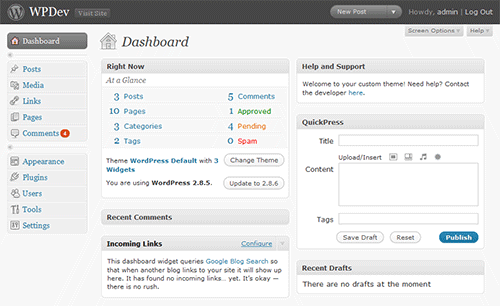
Here is a practical use case based on that documentation: let’s remove all of the default widgets that don’t pertain to managing a typical site, and add one simple widget that welcomes the administrator and reminds them how to contact the developer for support.

add_action('wp_dashboard_setup', 'my_custom_dashboard_widgets');

function my_custom_dashboard_widgets() {
   global $wp_meta_boxes;

   unset($wp_meta_boxes['dashboard']['normal']['core']['dashboard_plugins']);
   unset($wp_meta_boxes['dashboard']['side']['core']['dashboard_primary']);
   unset($wp_meta_boxes['dashboard']['side']['core']['dashboard_secondary']);

   wp_add_dashboard_widget('custom_help_widget', 'Help and Support', 'custom_dashboard_help');
}

function custom_dashboard_help() {
   echo '<p>Welcome to your custom theme! Need help? Contact the developer <a href="http://mytemplates.com">here</a>.</p>';
}

Customized WordPress admin dashboard

Customizing the Contextual Help Dropdown

Throughout its administrative panel, WordPress has a small “Help” tab just below the administrative header. Clicking this tab rolls down contextual help for the current administrative page.
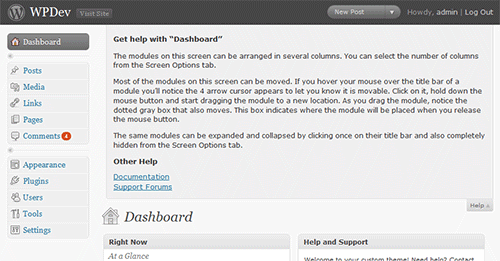
WordPress contextual administrative help

If your theme has some special functionality that might not be intuitive, it’s a good practice to add some additional contextual help. For example purposes, let’s assume that the theme has been customized to use the “more divider” to separate content into two columns, as described in the first tip. That’s probably not an obvious feature for your average content editor. To accomplish this, hook the contextual help text when on the “new page” and “edit page” administrative pages, and add a note about that feature.

//hook loading of new page and edit page screens
add_action('load-page-new.php','add_custom_help_page');
add_action('load-page.php','add_custom_help_page');

function add_custom_help_page() {
   //the contextual help filter
   add_filter('contextual_help','custom_page_help');
}

function custom_page_help($help) {
   //keep the existing help copy
   echo $help;
   //add some new copy
   echo "<h5>Custom Features</h5>";
   echo "<p>Content placed above the more divider will appear in column 1. Content placed below the divider will appear in column 2.</p>";
}
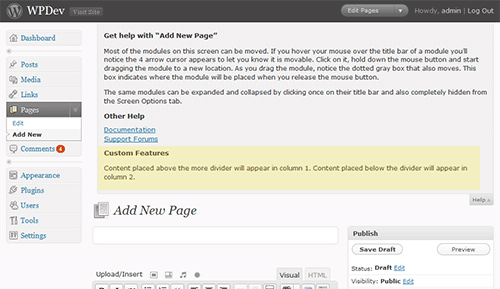
Customized WordPress contextual administrative help

Dropping in Your Own Logo

Providing the client some administrative branding can be quick and easy. Here’s how to replace the default WordPress “W” logo in the administrative header with a custom alternative.

First, create an image that fits the allocated space. As of WordPress 2.8, the logo is a 30 pixels wide and 31 pixels tall transparent GIF. When using a transparent GIF or 8-bit PNG, ensure that the image matte matches the header background color: hex value 464646.

A logo named “custom_logo.gif” inside the template directory’s image subfolder can substitute the default WordPress logo with the following code inside the theme’s “functions.php” file.

//hook the administrative header output
add_action('admin_head', 'my_custom_logo');

function my_custom_logo() {
   echo '
      <style type="text/css">
         #header-logo { background-image: url('.get_bloginfo('template_directory').'/images/custom-logo.gif) !important; }
      </style>
   ';
}
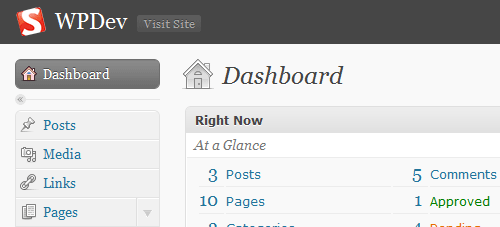
Customized logo in WordPress administration

Hiding Fields Based on User Role

Basic contributors might be confused or distracted by some of the boxes that surround the page or post editor, particularly if there are a handful of plug-ins that have added their own meta boxes. Alternatively, the content editor might simply want to keep author and contributor hands off of some special fields or features.

Let’s say the content editor wants to keep authors and contributors way from the “custom fields” box. We can use the “remove_meta_box” function – regardless of user role – to remove that from all post editing screens like so:

//hook the admin init
add_action('admin_init','customize_meta_boxes');

function customize_meta_boxes() {
     remove_meta_box('postcustom','post','normal');
}

The “remove_meta_box” function takes three parameters. The first is the ID of the box. The easiest way to discover the ID of the meta box is to look for the ID attribute of the corresponding DIV “postbox” in the source code. The second parameter determines which the context the function applies to: page, post, or link. Finally, the context attribute determines the position within its context: normal, or advanced (in most cases, just setting this to “normal” will work fine).
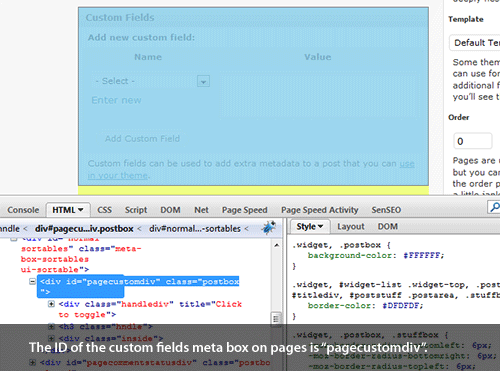
Finding a meta box ID using Firebug

The next step is to extend the “customize_meta_boxes” function so that the “custom fields” box – ID “postcustom” – is only hidden from users with author role or lower. We’ll use get_currentuserinfo to retrieve the user level. According to the WordPress codex, authors represent level 2.

//hook the admin init
add_action('admin_init','customize_meta_boxes');

function customize_meta_boxes() {
     //retrieve current user info
     global $current_user;
     get_currentuserinfo();

     //if current user level is less than 3, remove the postcustom meta box
     if ($current_user->user_level < 3)
          remove_meta_box('postcustom','post','normal');
}

Adding Features to the Post & Page Editor

WordPress provides a “custom fields” box that makes it quick and easy to start adding new metadata to your pages and posts. For a tech-savvy client or low budget customization, this is a great, inexpensive method to start adding some unique fields for a custom implementation.
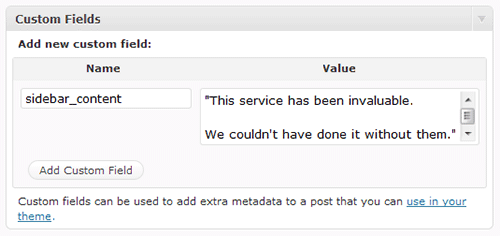
Custom field with sidebar_content key

But there are plenty of times when something more specialized than a generic “custom fields” box may be appropriate. A less savvy client may be confused by the generic fields that lack any documentation. A checkbox for a Boolean field may be more intuitive for a client than instructions to choose the custom field name from a drop down and type in “1” or “true” under the value. column Or maybe the field should be limited, in select box like fashion, to a few different choices.

The WordPress API can be used to add custom meta boxes to pages and / or posts. And with WordPress 2.8, adding new, tag-like taxonomies is a cinch.

Adding a Custom Meta Box

Let’s say a hyper-local journalist has hired us to build a news blog that covers politics in New York City. The journalist has a few writers on her team, none of whom are particularly tech-savvy, but they will all be set up as authors and posting their reports directly in WordPress. Our imaginary client wants each article associated with a single borough, in addition to a “city-wide” option. Articles will never be associated with 2 boroughs, and the staff is prone to typos.

A developer accustomed to basic WordPress administrative customization would probably go to “categories” first. Make a “city-wide” category, with sub-categories for each borough. However, categories are multi-select, and there’s no obvious way to prevent authors from selecting several. Furthermore, the client wants the borough named at the beginning of the article, and if categories are used in other ways (like news topics), extracting the borough name would be a bit tricky.

So how about a “custom field” for “borough”? The authors never remember to look in that generic custom fields box, and in their rush to meet deadlines, occassionally spell the borough wrong, breaking the “filter by borough” feature on the front end.

The right answer is a new custom “meta box,” with a drop down “Borough” field. The WordPress Codex documents the “add_meta_box” function in detail.

Let’s apply the code discussed in the codex to this use case, assuming we want the “Borough” field to only appear on posts (not pages), and be shown on the top-right of the post editor page.

/* Use the admin_menu action to define the custom boxes */
add_action('admin_menu', 'nyc_boroughs_add_custom_box');

/* Adds a custom section to the "side" of the post edit screen */
function nyc_boroughs_add_custom_box() {
     add_meta_box('nyc_boroughs', 'Applicable Borough', 'nyc_boroughs_custom_box', 'post', 'side', 'high');
}

/* prints the custom field in the new custom post section */
function nyc_boroughs_custom_box() {
     //get post meta value
     global $post;
     $custom = get_post_meta($post->ID,'_nyc_borough',true);

     // use nonce for verification
     echo '<input type="hidden" name="nyc_boroughs_noncename" id="nyc_boroughs_noncename" value="'.wp_create_nonce('nyc-boroughs').'" />';

     // The actual fields for data entry
     echo '<label for="nyc_borough">Borough</label>';
     echo '<select name="nyc_borough" id="nyc_borough" size="1">';

      //lets create an array of boroughs to loop through
      $boroughs = array('Manhattan','Brooklyn','Queens','The Bronx','Staten Island');
      foreach ($boroughs as $borough) {
            echo '<option value="'.$borough.'"';
            if ($custom == $borough) echo ' selected="selected"';
            echo '>'.$borough.'</option>';
      }

     echo "</select>";
}

/* use save_post action to handle data entered */
add_action('save_post', 'nyc_boroughs_save_postdata');

/* when the post is saved, save the custom data */
function nyc_boroughs_save_postdata($post_id) {
     // verify this with nonce because save_post can be triggered at other times
     if (!wp_verify_nonce($_POST['nyc_boroughs_noncename'], 'nyc-boroughs')) return $post_id;

     // do not save if this is an auto save routine
     if (defined('DOING_AUTOSAVE') && DOING_AUTOSAVE) return $post_id;

     $nyc_borough = $_POST['nyc_borough'];
     update_post_meta($post_id, '_nyc_borough', $nyc_borough);
}

Take another look at the second to last line in that code block, where the post metadata is updated (update_post_meta will also add the meta if it does not exist). That function stores the field key and value (second and third parameters), assigned to the designated post (first parameter) in the same generic “way” that custom fields are stored. Notice that the field key name was prefaced with an underscore: “_nyc_borough”. Meta fields with keys beginning with an underscore are not shown in the generic “custom fields” box. All other meta fields are shown in that box.
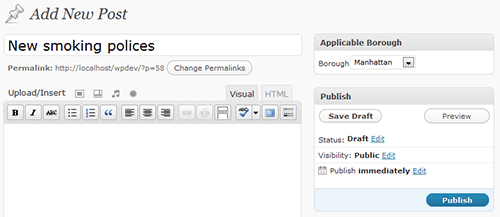
New borough custom field added to WordPress post editor screen

We can use this field value in our template just as we would embed generic custom fields.

echo get_post_meta($post->ID, '_nyc_borough', true);

If we want to do a post query that only includes posts in the “Queens” borough, we can execute the query with the following code:

query_posts('meta_key=_nyc_borough&meta_value=Queens');

Adding Custom Taxonomies

A taxonomy, generically defined, is a “classification.” Post tags and categories in WordPress are both types of taxonomies, one of which – categories – has a “hierarchical” proprietary: categories can have child and parent categories. The ability to define new taxonomies has actually been around in some basic form since WordPress 2.3 – but WordPress 2.8 ups the ante, making it incredibly easy for template developers to add and manage tag-like taxonomies.

At the core API level, taxonomies may be hierarchical (or not, a la “tags”) , associated with pages or posts, and have a few other more esoteric properties related to allowing post queries and permalink structures. The potential for custom taxonomies is considerable – posts could easily have two types of categories, pages could have multiple tags, and sites could have multiple tag clouds based on groupings more specific that a generic “tag.”

While the architecture for all of this is all there, the real magic of custom taxonomies – introduced in 2.8 – has only been enabled for posts and non-hierarchical types. But if those qualifications aren’t a show stopper, a developer can get a lot of value out of just a few lines of code: a new tag-like meta box added to posts, a new “posts menu” option for managing those values, and the ability to easily output clouds, filter by taxonomies, design taxonomy templates, and do just about anything one could do with generic “tags” on the front end.

The WordPress Codex outlines the “register_taxonomy” function.

Let’s go back to that hyper-local New York City politics blog. Say the editor wants authors to be able to “tag” articles with a distinct “people” taxonomy, but still wants to retain generic tagging. The new “people” taxonomy will highlight the names of political leaders mentioned in articles. On the front end the editor envisions a “tag cloud” that will help the most active politicians get recognized (for better or worse!). Clicking on a leader’s name in the cloud should bring up a list of articles “tagged” with the given politician.

The following few lines of code will add the new “people” meta box to posts and add a new option to the “posts” menu where the taxonomy values can be managed.

//hook into the init action to add the taxonomy
add_action( 'init', 'create_nyc_people_taxonomy');

//create nyc people taxonomy
function create_nyc_people_taxonomy() {
     register_taxonomy('people', 'post', array('hierarchical' => false, 'label' => 'people'));
}
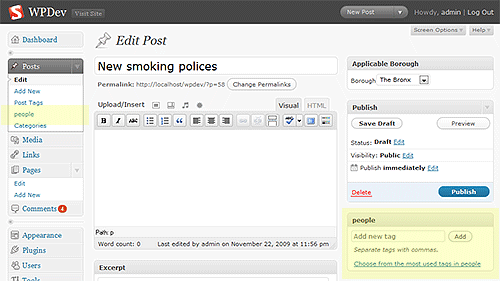
New custom post taxonomy in WordPress - people

To output a cloud for this custom taxonomy highlighting the 40 most-tagged politicians, the generic “wp_tag_cloud” function can be used with a few parameters.

wp_tag_cloud(array('taxonomy' => 'people', 'number' => 40));

To list the highlighted leaders in a single post:

echo get_the_term_list($post->ID, 'people', 'People: ', ', ');

Clicking on a person’s name will automatically take the visitor to an archive for that taxonomy. Custom template files can also be built for the custom taxonomy. A “taxonomy.php” template file in the theme folder can be used for all custom taxonomies. A “taxonomy-people.php” template file could be used for the “people” taxonomy in the example. As with all archives, if no taxonomy-specific template files are available, WordPress will fall back to the generic “archive” and “index” template files.

Further Reading on Custom Meta Boxes and Taxonomies

Jacob M (Jake) Goldman is the owner of 10up LLC, a web development and strategy agency with a focus on making content management easy and fun. 10up's clients range from small local businesses to major WordPress.com VIP clients like TechCrunch. You can find his insights and development tips by following him on Twitter @jakemgold

  1. 1

    Mirza Aliyev

    December 14th, 2009 7:30 am

    Useful. Thank you. Liked dropping own logo into admin panel :)

    0
    • 2

      Thomas Evangelista

      December 14th, 2009 3:52 pm

      Ohh man your amazing, thanks so much for this post Jacob!!

      0
    • 3

      Andre

      December 14th, 2009 11:46 pm

      Yeah, thats what I’m searching for… very nice =)

      0
  2. 4

    Keven Bouchard

    December 14th, 2009 7:30 am

    Really nice article! seriously!

    It’s fun having admin customization tips instead of the redundant template stuffs.

    0
  3. 5

    Joel G Goodman

    December 14th, 2009 7:38 am

    Awesome. Posts like these get my mind working on a bunch of possibilities for future projects. Thanks for mixing this kind of stuff in with the rest of your creative content.

    0
  4. 6

    Lourens

    December 14th, 2009 7:47 am

    Thank you soooo much, great article and great examples!!

    0
  5. 7

    codee47

    December 14th, 2009 8:01 am

    Great articles, thanks. I love wordpress :)

    0
  6. 8

    Paul

    December 14th, 2009 8:02 am

    Very useful, indeed. More like this please!

    0
  7. 9

    Steven Rossi

    December 14th, 2009 8:05 am

    Using meta boxes with underscore-named fields is one of my favorite things about the WP backend. I wish more people would make use of it.

    0
  8. 10

    Nathan Barry

    December 14th, 2009 8:31 am

    Great article. I am enjoying the advanced tips. Though could you please work on a title that is actually descriptive of the post content?

    0
  9. 11

    HERO

    December 14th, 2009 9:17 am

    Well written and extremely useful. There aren’t a lot of resources on this topic, making this article even more valuable. Kudos Jacob.

    0
  10. 12

    Kawsar Ali

    December 14th, 2009 9:22 am

    This is really great. Useful for creating customized back end

    0
  11. 13

    Chris Robinson

    December 14th, 2009 9:24 am

    Really nice article, definitely going to use some of this in my next WP theme.

    0
  12. 14

    Darfuria

    December 14th, 2009 10:07 am

    Very informative post, thanks!

    0
  13. 15

    Matt

    December 14th, 2009 10:25 am

    With the popularity of WordPress being used as a CMS for clients customizing the admin area is a must. Good post.

    0
  14. 16

    Design Informer

    December 14th, 2009 10:34 am

    I personally love these types of posts from Smashing Magazine. I’m not a developer but I am a huge fan of WordPress and what it’s capabilities are, and these types of articles/tutorials really show us the power of WordPress.

    I’m personally going to try that logo branding on my next client WordPress project. Thanks Smashing Magazine, and I look forward to more articles from this series.

    0
  15. 17

    dmantra

    December 14th, 2009 10:50 am

    this is really going to help!! gr8 post

    0
  16. 18

    Shaun

    December 14th, 2009 11:24 am

    These tips are going to be so useful, thank you. The screenshots really help too. More and more articles like this please!

    0
  17. 19

    Brian

    December 14th, 2009 11:38 am

    WordPress posts by Smashing Mag are the best. I enjoyed learning how to replace the default WordPress admin logo with a custom logo.

    0
  18. 20

    Montia Garcia

    December 14th, 2009 11:49 am

    Excellent post.

    0
  19. 21

    FrankieB

    December 14th, 2009 12:05 pm

    I love this post, very informative. How would all of these types of changes affect WordPress updates?

    0
    • 22

      Steffen Jørgensen

      December 14th, 2009 6:35 pm

      Unless WP changes the names on the functions in the core it shouldn’t change after an update, as these changes are writtes into the theme functions.php.

      0
  20. 23

    Jason

    December 14th, 2009 12:33 pm

    Good stuff, will come in handy with the theme I am developing at the moment.

    0
  21. 24

    Kharismatic

    December 14th, 2009 12:57 pm

    This is an awesome post! I’ve always wanted to do a little customization in the WordPress back-end. This tutorial gives me enough confidence to go back there to make it my own! Thanks!

    0
  22. 25

    BigM75

    December 14th, 2009 1:21 pm

    wow – better works whit that

    0
  23. 26

    Level Level

    December 14th, 2009 1:23 pm

    great article! more of these please

    0
  24. 27

    redwall_hp

    December 14th, 2009 1:51 pm

    This is hardly exclusive to theme developers. It’s a great article for us plugin developers, too!

    0
  25. 28

    Mike

    December 14th, 2009 2:59 pm

    Great, ty so much

    0
  26. 29

    Crystal

    December 14th, 2009 3:55 pm

    Awesome article. I’ve done a few WordPress themes, but I love constantly learning more ‘tricks of the trade’ when it comes to premium theme design. Great collection of techniques here, and very well explained. Thank you Jacob!

    0
  27. 30

    The Lone Grainger

    December 14th, 2009 4:18 pm

    Great article! Thank you so much for all your work!

    0
  28. 31

    Anjum nawab

    December 14th, 2009 10:06 pm

    Okay seems pretty Good. Guys i am new to CMS’s can you please tell me which CMS is good Joomla or WP as both are open source. If joomla then please write some stuff for it because I can find many help/ resources for WP but i dont for Joomla..

    Thanks a lot its very interesting/Informative post :)

    0
    • 32

      jan

      December 15th, 2009 7:11 am

      Well, as you say wordpress is highly featured everywhere :p
      There’s a reason for that I think, but also drupal is really nice still wordpress is so easy to use and customize nothing can’t change it for me :)

      Keep up the good work both smashing and wordpress :)

      0
  29. 33

    spritzstuhl

    December 15th, 2009 12:28 am

    Sounds interesting and seems to be appreciated by the audience. But WP still needs to much of coding to spice it up (personal opinion). Anyway I’ll try it out. Promised!!

    0
  30. 34

    Jonas

    December 15th, 2009 12:42 am

    Thanks for the tips!

    0
  31. 35

    Murali Kumar

    December 15th, 2009 12:57 am

    WOW, great tips.
    Thanks a ton.

    0
  32. 36

    Jonathan Downin

    December 15th, 2009 2:05 am

    The custom taxonomy stuff is a revelation for me, but after implementation, when a link is clicked in a custom taxonomy tag list, it goes to a “not found” page instead of rolling back to using an archive or index page. Can anyone point me to a taxonomy.php template?

    Also, any easy way to move the tags of 1000+ posts worth of tags in new taxonomies in a “mass edit” sort of way?

    0
    • 37

      Marta

      December 15th, 2009 3:04 pm

      The ‘no found’ page is a common problem after registering a new taxonomy. A simple fix is to go to your settings – permalinks and change the permalinks to custom structure like: /%postname%/
      (even if you already have them set up, you need to ‘reset’ permalinks for taxonomies pages to work)

      0
      • 38

        Jonathan Downin

        December 18th, 2009 11:00 pm

        That totally fixed the problem, thanks. Now onto figuring out the 1000+ posts problem.

        0
  33. 39

    charm

    December 15th, 2009 2:48 am

    These tips are going to be so useful, thank you. The screenshots really help too. More and more articles like this please!
    thx
    my blog Pepitup

    0
  34. 40

    sergio

    December 15th, 2009 4:32 am

    Very clear and useful, thanks!

    0
  35. 41

    Shiraz

    December 15th, 2009 4:55 am

    Great write up – thanks! Still being quite new to WP, I’m wondering if these changes would be retained once you perform an upgrade?

    0
    • 42

      fldtrace

      December 16th, 2009 12:04 pm

      as long you have your function file intact, I would say that yes. However, I am unsure that the code will be compatible with WordPress ver X.X, but no worries until than.

      0
  36. 43

    paul

    December 15th, 2009 7:42 am

    nice, some stuff i didnt know about wordpress… and some new ideas… thanks smashing magazine, your awsome.

    0
  37. 44

    Bestie

    December 15th, 2009 7:57 am

    Nice tips! I Love WordPress!

    0
  38. 45

    Sebastian Oxide

    December 15th, 2009 11:59 am

    Thanks for a great post!

    Is there a way you can put a condition on “Adding a custom meta box”?
    So if I for example select in the drop down menu “New York” and save, a new custom meta box appears specific for that selection?

    0
  39. 46

    Manet

    December 15th, 2009 4:45 pm

    Nice work for the Author. Think twice for the developer.
    All I can say is “think changes, think upgrade”.

    0
  40. 47

    Gold Rush

    December 16th, 2009 9:38 am

    Guys, anybody can help me? I create two taxonomy. I can see them in the post. I added tags – stll work. But then i create tag cloud it doesnt work – only 404 page like this _gamequote.ru/game/planescape-tournament or _gamequote.ru/character/glados . What i do wrong?

    0
  41. 48

    ec

    December 17th, 2009 6:25 am

    Amazing post – really useful and detailed.

    0
  42. 49

    Jill

    December 17th, 2009 10:37 am

    This is great. I’ve been wondering how to use custom taxonomies but hadn’t found time to do any research. It’s all right here. Thanks!

    0
  43. 50

    Jauhari

    December 21st, 2009 6:51 am

    Wonderful tricks

    0
  44. 51

    palPalani

    January 6th, 2010 10:25 am

    ayo. superb tips.. each line is very usefull!!

    0
  45. 52

    Thiago A. Villa Menezes

    January 9th, 2010 9:39 am

    In which file do I put that code? O.o

    0
  46. 53

    _Tristan

    January 24th, 2010 8:56 am

    Yea! Good stuff even if its a bit old!

    0
  47. 54

    Dave Y.

    February 5th, 2010 7:41 pm

    Whenever I cut & paste the code in from the “Add meta box” section, I start having redirect errors in the admin section where it just goes to the blank page. Is that because it’s supposed to be in a file other than the theme’s functions.php file or is it something else? Anyone else experience this problem?

    0
  48. 55

    Zach

    February 23rd, 2010 4:22 pm

    Great tips! Thanks.

    0
  49. 56

    josemanuel

    February 24th, 2010 1:19 pm

    brilliant

    0
  50. 57

    timani

    March 10th, 2010 9:50 am

    good read especially the logo on the admin even though it may be a simple one and definitely the taxonomies!

    0
  51. 58

    davide

    March 23rd, 2010 1:38 am

    Is there any way to sort all the box in a custom way? The ‘priority’ argument in add_meta_box seems too weak to me

    0
  52. 59

    Bilal Ahmed

    April 8th, 2010 10:20 pm

    really nice article, especially custom meta box portion

    0
  53. 60

    devashish

    April 24th, 2010 10:01 am

    Very useful article.. i was looking for sumthing similar to “Remove dashboard widgets”. Can the code be update so the widgets are not removed for administrator and editor role users?

    0
  54. 61

    Keith

    April 27th, 2010 2:25 am

    I tried for ages to work out which file I needed to edit. It isn’t until ‘Dropping in your own Logo’ that ‘functions.php’ is mentioned. Could you edit this into the first section?

    0
  55. 62

    XLCowBoy

    May 16th, 2010 11:04 pm

    it would be nice to be able to have user-edit comments natively

    0
  56. 63

    UnfaincUlcefe

    June 9th, 2010 2:23 am

    Hi-ya i am fresh to this, I stumbled upon this message board I find It vastly helpful and it’s helped me out tons. I should be able to contribute and support others like its helped me.

    Thanks a load, Catch You Later.

    0
  57. 64

    Jamie Brewer

    June 14th, 2010 6:27 am

    Really Great article! I’m sure I’ll use a couple of these techniques! Anyway I came here looking to add a custom meta box with an upload field (so users can upload images). Anyone have any idea where I could find a tut or article on that?

    0
  58. 65

    UnfaincUlcefe

    June 18th, 2010 5:46 am

    Aloha i’m fresh on here, I came upon this chat board I find It positively helpful & it’s helped me so much. I should be able to give something back & aid other people like it has helped me.

    Thanks a load, Catch You About.

    0
  59. 66

    UnfaincUlcefe

    June 20th, 2010 12:16 am

    Hiya i’m fresh here, I hit upon this message board I find It vastly accessible & its helped me alot. I hope to contribute & support other users like it has helped me.

    Thanks a load, See Ya About.

    0
  60. 67

    UnfaincUlcefe

    June 20th, 2010 2:49 am

    Heya im new on here. I hit upon this board I find It truly accommodating and its helped me alot. I should be able to contribute & guide others like it has helped me.

    Cheers, See You About.

    0
  61. 68

    GemHeisse

    June 22nd, 2010 9:01 am

    Aloha everybody, brilliant site I find It absolutely accessible & its helped me tons
    I hope to give something back & guide other users like this message board has helped me

    0
  62. 69

    chaliaDadly

    June 22nd, 2010 3:56 pm

    Hiya i’m new here, I came upon this chat board I have found It very helpful & its helped me out a lot. I hope to contribute & assist others like it has helped me.

    Thanks, See You Later

    +1
  63. 70

    Tyar

    August 12th, 2010 11:12 pm

    amazing tips.. tengkiu..

    +1
  64. 71

    helpin

    September 2nd, 2010 5:16 am

    Where do I add code to include “help widget ” in dash board?In theme’s functions.php or admin-functions.php in installation folder?

    0
  65. 72

    DAN

    October 16th, 2010 10:52 am

    When adding a custom meta box to posts, is nonce verification really necessary for each meta box?

    I think only one nonce value per form tag is needed which WordPress already generates for posts automatically.

    Killer tips – thanks!

    0
  66. 73

    Kuldeep

    November 10th, 2010 9:58 am

    Nice ones. I was actually looking for these tutorials. Thanks again

    0
  67. 74

    sabarinathan

    November 28th, 2010 10:58 pm

    really a nice article……..

    0
  68. 75

    масла

    December 19th, 2010 10:27 am

    thanks ….very amazing tips

    0
  69. 76

    El garch

    March 11th, 2011 9:01 am

    Very useful thanks a lot keep postin’ :D

    0
  70. 77

    Marko

    July 23rd, 2011 4:35 am

    in 3.2 WP generates it as:

    how can we go about it?

    0
  71. 78

    Rich

    November 3rd, 2011 1:36 pm

    Hi

    Thanks for the post. I am trying to add some of the code to a functions plugin rather than functions.php. I have started with the custom logo in the admin area but it is not showing up. Do I need to change something for a plugin please?

    Thanks

    Rich

    0
  72. 79

    Sam Greensted

    November 24th, 2011 1:58 am

    Great post, thanks for the handy collection.
    Sam

    0
  73. 80

    Somavieva

    February 12th, 2012 1:54 am

    Hello, I am new here, from Canada, want to learn more knowledge.

    0
  1. 1

    chaliaDadly

    June 22nd, 2010 3:56 pm

    Hiya i’m new here, I came upon this chat board I have found It very helpful & its helped me out a lot. I hope to contribute & assist others like it has helped me.

    Thanks, See You Later

    +1
  2. 2

    Tyar

    August 12th, 2010 11:12 pm

    amazing tips.. tengkiu..

    +1

Leave a Comment

Yay! You've decided to leave a comment. That's fantastic! Please keep in mind that comments are moderated and rel="nofollow" is in use. So, please do not use a spammy keyword or a domain as your name, or it will be deleted. Let's have a personal and meaningful conversation instead. Thanks for dropping by!

↑ Back to top