How To Create Native Admin Tables In WordPress The Right Way

Email Newsletter
Weekly tips on front-end & UX.
Trusted by 200,000+ folks.


 Flexible CMS. Headless & API 1st
List tables are a common element in WordPress’ administration interface. They are used on nearly all default admin pages with lists, and developers often integrate them into their plugins. But creating one of these tables is not really intuitive if you haven’t done it before, and I’ve seen people try to replicate it by using WordPress CSS classes in custom markup and even by replicating the CSS from scratch.
In this article, we’ll see how WordPress provides functionality that can be used to generate native admin tables. We’ll look at a typical WordPress table and its different components and show how to implement it the right way.
Further Reading on SmashingMag:
- How To Customize The WordPress Admin Easily
- Modifying Admin Post Lists In WordPress
- 10 Steps To Protect The Admin Area In WordPress
Presentation Of A WordPress Table
To better understand the various elements we’ll be talking about, let’s take the default link manager that you see when you click “Links” in the admin menu. Here’s what you see:
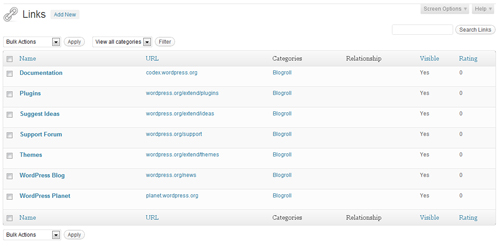
The default page for managing links in WordPress 3.2.
As you can see, a few different elements precede the table that enable you to perform actions on the table. Then we have the table’s header, the rows, the table’s footer and, finally, some more actions.
Before and After the Table
WordPress’ admin interface is consistent, so you’ll get used to finding elements in certain places as you navigate.
Before and after the admin tables, for example, are where you would usually find options to take action on the table. These include bulk actions, which enable you to edit and delete multiple posts and to filter the list based on a certain criteria.
We’ll see in the second part of this article how to interact with these two areas and how to display options there.
Header and Footer
Speaking of consistency, every admin table in WordPress has a header and footer.
Following the same logic, they display the the same information: the titles of the columns. Some of the titles are simple and some are linked (meaning that the table can be ordered according to that column).
The Content
Obviously, the reason you would create a table is to put some content in it. This content would go in the rows between the header and footer.
How Is This Done In WordPress?
As we’ve just seen, a WordPress table has three families of elements. Let’s see how to achieve this, using a concrete example.
Our Example Table
Most of the time, the data we want to display will be in the form of a SQL table. We’ll use the default links table in WordPress as our example, but the concepts apply to any database table and could easily be adapted to your needs. Our table will have the following structure:
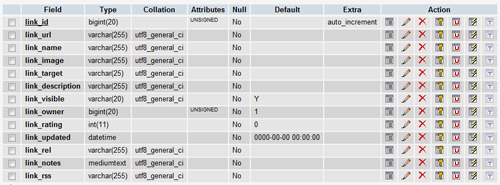
This table contains some default data that will be perfect for testing.
Using the List Table Class
To create an HTML table in WordPress, we don’t have to write a lot of HTML. Instead, we can rely on the precious work of the WP_List_Table class. As explained by the WordPress Codex, this class is a powerful tool for generating tables.
It is tailored for back-end developers, so we can concentrate on the most essential task (the treatment of the data), leaving the other tasks (such as HTML rendering) to WordPress.
The WP_List_Table class is essentially a little framework whose functionality we can rely on to prepare our table. This is an object-oriented approach, because we’ll be creating an object that extends WP_List_Table and using that, instead of using WP_List_Table directly.
Let’s create a class Link_List_Table with a simple constructor:
class Link_List_Table extends WP_List_Table {

   /**
    * Constructor, we override the parent to pass our own arguments
    * We usually focus on three parameters: singular and plural labels, as well as whether the class supports AJAX.
    */
    function __construct() {
       parent::__construct( array(
      'singular'=> 'wp_list_text_link', //Singular label
      'plural' => 'wp_list_test_links', //plural label, also this well be one of the table css class
      'ajax'   => false //We won't support Ajax for this table
      ) );
    }

}
This is the starting point of our table. We now have an object that has access to the properties and methods of its parent, and we’ll customize it to suit our needs.
Keeping in mind the three types of elements we saw earlier, let’s see now what to add to our class to get the same result.
How to Add Elements Before and After the Table
To display content before or after the table, we need to add a method named extra_tablenav to our class. This method can be implemented as follows:
/**
 * Add extra markup in the toolbars before or after the list
 * @param string $which, helps you decide if you add the markup after (bottom) or before (top) the list
 */
function extra_tablenav( $which ) {
   if ( $which == "top" ){
      //The code that goes before the table is here
      echo"Hello, I'm before the table";
   }
   if ( $which == "bottom" ){
      //The code that goes after the table is there
      echo"Hi, I'm after the table";
   }
}
The interesting thing here is that the extra_tablenav method takes one parameter, named $which, and this function is called twice by Link_List_Table, (once before the table and once after). When it’s called before, the value of the $which parameter is top, and when it’s called a second time, after the table, its value is bottom.
You can then use this to position the various elements that you’d like to appear before and after the table.
This function exists in the parent WP_List_Table class in WordPress, but it doesn’t return anything, so if you don’t override it, nothing bad will happen; the table just won’t have any markup before or after it.
How to Prepare the Table’s Header and Footer
In the header and footer, we have the column’s headers, and some of them are sortable.
We’ll add to our class a method named get_columns that is used to define the columns:
/**
 * Define the columns that are going to be used in the table
 * @return array $columns, the array of columns to use with the table
 */
function get_columns() {
   return $columns= array(
      'col_link_id'=>__('ID'),
      'col_link_name'=>__('Name'),
      'col_link_url'=>__('Url'),
      'col_link_description'=>__('Description'),
      'col_link_visible'=>__('Visible')
   );
}
The code above will build an array in the form of 'column_name'=>'column_title'. This array would then be used by your class to display the columns in the header and footer, in the order you’ve written them, so defining that is pretty straightforward.
Plenty of fields are in the links table, but not all of them interest us. With our get_columns method, we’ve chosen to display only a few of them: the ID, the name, the URL, the description of the link, as well as whether the link is visible.
Unlike the extra_tablenav method, the get_columns is a parent method that must be overridden in order to work. This makes sense, because if you don’t declare any columns, the table will break.
To specify the columns to which to add sorting functionality, we’ll add the get_sortable columns method to our class:
/**
 * Decide which columns to activate the sorting functionality on
 * @return array $sortable, the array of columns that can be sorted by the user
 */
public function get_sortable_columns() {
   return $sortable = array(
      'col_link_id'=>'link_id',
      'col_link_name'=>'link_name',
      'col_link_visible'=>'link_visible'
   );
}
Here again, we’ve built a PHP array. The model for this one is 'column_name'=>'corresponding_database_field'. In other words, the column_name must be the same as the column name defined in the get_columns method, and the corresponding_database_field must be the same as the name of the corresponding field in the database table.
The code we have just written specifies that we would like to add sorting functionality to three columns (“ID,” “Name” and “Visible”). If you don’t want the user to be able to sort any columns or if you just don’t want to implement this method, WordPress will just assume that no columns are sortable.
At this point, our class is ready to handle quite a few things. Let’s look now at how to display the data.
How to Display the Table’s Rows
The first steps in preparing the list table are very quick. We just have to tackle a few more things in the treatment of data.
To make the list table display your data, you’ll need to prepare your items and assign them to the table. This is handled by the prepare_items method:
/**
 * Prepare the table with different parameters, pagination, columns and table elements
 */
function prepare_items() {
   global $wpdb, $_wp_column_headers;
   $screen = get_current_screen();

   /* -- Preparing your query -- */
        $query = "SELECT * FROM $wpdb->links";

   /* -- Ordering parameters -- */
       //Parameters that are going to be used to order the result
       $orderby = !empty($_GET["orderby"]) ? mysql_real_escape_string($_GET["orderby"]) : 'ASC';
       $order = !empty($_GET["order"]) ? mysql_real_escape_string($_GET["order"]) : ’;
       if(!empty($orderby) & !empty($order)){ $query.=' ORDER BY '.$orderby.' '.$order; }

   /* -- Pagination parameters -- */
        //Number of elements in your table?
        $totalitems = $wpdb->query($query); //return the total number of affected rows
        //How many to display per page?
        $perpage = 5;
        //Which page is this?
        $paged = !empty($_GET["paged"]) ? mysql_real_escape_string($_GET["paged"]) : ’;
        //Page Number
        if(empty($paged) || !is_numeric($paged) || $paged<=0 ){ $paged=1; } //How many pages do we have in total? $totalpages = ceil($totalitems/$perpage); //adjust the query to take pagination into account if(!empty($paged) && !empty($perpage)){ $offset=($paged-1)*$perpage; $query.=' LIMIT '.(int)$offset.','.(int)$perpage; } /* -- Register the pagination -- */ $this->set_pagination_args( array(
         "total_items" => $totalitems,
         "total_pages" => $totalpages,
         "per_page" => $perpage,
      ) );
      //The pagination links are automatically built according to those parameters

   /* -- Register the Columns -- */
      $columns = $this->get_columns();
      $_wp_column_headers[$screen->id]=$columns;

   /* -- Fetch the items -- */
      $this->items = $wpdb->get_results($query);
}
As you can see, this method is a bit more complex than the previous ones we added to our class. So, let’s see what is actually happening here:
- Preparing the query The first thing to do is specify the general query that will return the data. Here, it’s a generic
SELECTon the links table. - Ordering parameters The second section is for the ordering parameters, because we have specified that our table can be sorted by certain fields. In this section, we are getting the field (if any) by which to order our record (
$_GET['order']) and the order itself ($_GET['orderby']). We then adjust our query to take those into account by appending anORDER BYclause. - Pagination parameters The third section deals with pagination. We specify how many items are in our database table and how many to show per page. We then get the current page number (
$_GET['paged']) and then adapt the SQL query to get the correct results based on those pagination parameters. - Registration This part of the function takes all of the parameters we have prepared and assigns them to our table.
- Ready to go Our list table is now set with all of the information it needs to display our data. It knows what query to execute to get the records from the database; it knows how many records will be returned; and all the pagination parameters are ready. This is an essential method of your list table class. If you don’t implement it properly, WordPress won’t be able to retrieve your data. If the method is missing in your class, WordPress will return an error telling you that the
prepare_itemsmethod must be overridden. - Displaying the rows This is it! Finally, we get to the method responsible for displaying the records of data. It is named
display_rowsand is implemented as follows.
/**
 * Display the rows of records in the table
 * @return string, echo the markup of the rows
 */
function display_rows() {

   //Get the records registered in the prepare_items method
   $records = $this->items;

   //Get the columns registered in the get_columns and get_sortable_columns methods
   list( $columns, $hidden ) = $this->get_column_info();

   //Loop for each record
   if(!empty($records)){foreach($records as $rec){

      //Open the line
        echo '< tr id="record_'.$rec->link_id.'">';
      foreach ( $columns as $column_name => $column_display_name ) {

         //Style attributes for each col
         $class = "class='$column_name column-$column_name'";
         $style = "";
         if ( in_array( $column_name, $hidden ) ) $style = ' style="display:none;"';
         $attributes = $class . $style;

         //edit link
         $editlink  = '/wp-admin/link.php?action=edit&link_id='.(int)$rec->link_id;

         //Display the cell
         switch ( $column_name ) {
            case "col_link_id":  echo '< td '.$attributes.'>'.stripslashes($rec->link_id).'< /td>';   break;
            case "col_link_name": echo '< td '.$attributes.'>'.stripslashes($rec->link_name).'< /td>'; break;
            case "col_link_url": echo '< td '.$attributes.'>'.stripslashes($rec->link_url).'< /td>'; break;
            case "col_link_description": echo '< td '.$attributes.'>'.$rec->link_description.'< /td>'; break;
            case "col_link_visible": echo '< td '.$attributes.'>'.$rec->link_visible.'< /td>'; break;
         }
      }

      //Close the line
      echo'< /tr>';
   }}
}
This function gets the data prepared by the prepare_items method and loops through the different records to build the markup of the corresponding table row.
With this method, you have great control over how to display the data. If you do not wish to add this method to your class, then the class will use the parent’s method to render the data in WordPress’ default style.
Your list table class is now finished and ready to be used on one of your pages.
All of the methods we’ve added to our class already exist in the parent WP_List_Table class. But for your child class to work, you must override at least two of them: get_columns and prepare_items.
Implementation
Now that our list table class is ready, let’s see how we can use it on a page of our choice.
Where Do We Write It?
The code that we’ll cover in this section has to be written on the page where you want to display the admin table.
We’ll create a very simple demonstration plugin, named “Test WP List Table.” Basically, this plugin will add a link in the WordPress “Plugins” sub-menu. Our code will, therefore, be written in the plugin file.
Before We Begin
Important: the WP_List_Table class is not available in plugins by default. You can use the following snippet to check that it is there:
//Our class extends the WP_List_Table class, so we need to make sure that it's there
if(!class_exists('WP_List_Table')){
   require_once( ABSPATH . 'wp-admin/includes/class-wp-list-table.php' );
}
Also, if you have created your Links_List_Table class in an external file, make sure to include it before you start instantiating.
Instantiate the Table
The first step is to create an instance of our list table class, then call the prepare_items method to fetch the data to your table:
//Prepare Table of elements
$wp_list_table = new Links_List_Table();
$wp_list_table->prepare_items();
Display It
The $wp_list_table object is now ready to display the table wherever you want.
Build your page’s markup, and wherever you decide to display the table, make a call to the display() method:
//Table of elements
$wp_list_table->display();
Calling the display() method will generate the full markup of the list table, from the before-and-after area to the table’s content, and including the table’s header and footer. It also automatically generates all pagination links for you, so the result should look like this:
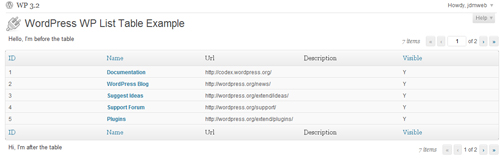
In the download accompanying this article, you’ll find the complete PHP file containing the class definition and the example of its implementation. It is named testWPListTable.php, and it is written in the form of a simple plugin that you can put in your WordPress plugin folder and activate if you want to see what it does.
Conclusion
Creating a PHP class merely to display a table of data might seem like overkill. But this class is very easy to create and customize. And once it’s done, you’ll be happy that the parts of tables that are difficult to implement, such as pagination and reordering, are now taken care of.
Also, because the generated markup is exactly what WordPress supports, if an update is released one day, your tables will remain in good shape.
The PHP code we’ve used is clean and easy to understand. And mastering the default functionality won’t take a long time.
What we’ve seen today is the basic implementation of a WordPress list table, but you can add other supported methods to the class for extra functionality.
For more information, read the Codex page dedicated to WordPress list tables, and have a look at another custom list table example.
I hope you’ve found this article useful, and I wish you good luck with list tables!
 (al)
(al)